Your WordPress dashboard is the control area for your website. Visitors see your published pages; you see tools for managing the content and features behind them. Once you know which menu belongs to which task, everyday changes become much easier. This Digital Rebellion guide helps you choose the right starting point before you edit anything.
Understand the public website and the dashboard
Open the public website in one tab and the dashboard in another. The dashboard address often includes /wp-admin/. Changing a draft does not normally change the public page until you publish or save an update. Other areas, including menus and settings, can take effect as soon as you save them.
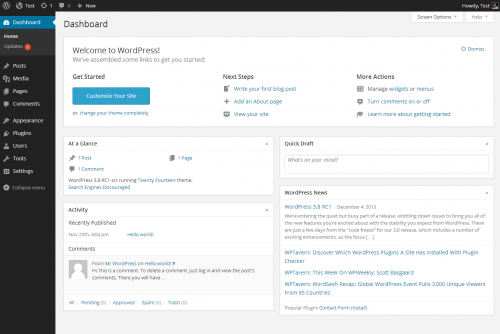
The toolbar across the top contains shortcuts and an account menu. The navigation down the side groups your management tools. On a smaller screen, you may need to open a menu icon to reveal the navigation. Labels can vary with WordPress versions, plugins and your user role.
Use the right menu for the job Posts usually contains dated articles, announcements and blog content. Pages contains longer-lasting information such as About, Contact and Services. Media stores uploaded images and documents. A blog article belongs in Posts even if your site calls the blog “Insights”. A new service description usually belongs in Pages.
Comments is used for discussion moderation where comments are enabled. Users controls accounts when your role allows it. Your own profile may be accessible even when you cannot manage other people. Appearance affects themes, menus or site design, depending on how the website was built.
A store may also show Products, WooCommerce and Marketing. Products are managed separately from ordinary posts. Plugin-specific menus may appear for forms, SEO, backups, caching or a page builder. Their presence does not mean you need to configure them before publishing content.
Find an existing item before creating another Suppose you want to change your business telephone number. First open the page where the number appears, then find that page in Pages → All Pages. If the same number appears in the header or footer across the site, it may be managed globally. Ask Digital Rebellion where the approved source is stored rather than creating a new Contact page.
Use search within the appropriate list screen. Search for a distinctive word from the title, check whether you are viewing Published, Draft or Trash, and clear old filters if results appear incomplete. Avoid changing content when another team member is actively editing it.
Read notices before acting on them Dashboard notices can relate to updates, plugin setup, licences, errors or promotions. Read the wording and identify the plugin or service involved. A promotional notice is not a requirement to purchase anything. A technical warning deserves investigation, but clicking a setup wizard can alter an established configuration.
If Digital Rebellion manages maintenance under your agreement, report update notices through the agreed support channel. Do not assume that your service includes every plugin licence or hosting task; use your handover and service agreement as the reference.
Practise a safe first task Open an existing page, identify its title and editor, and leave without saving if you have not made an intentional change. Then create a clearly named practice draft. Preview it, return to the list and confirm that it remains a draft. This gives you familiarity without adding a public navigation item.
Frequently asked questions Why is my dashboard different from the screenshot? Roles, themes, plugins and software versions all change what appears.
Can I hide dashboard boxes? Some screens offer Screen Options or preferences. Hiding a panel usually changes your view, not the public website.