A refund involves returning money, recording the change and deciding what happens to the goods. Cancelling an order is a different action. This guide helps you process an agreed refund accurately and verify the result without accidentally returning funds twice. Follow your business’s refund policy and approval process before using the order controls.
Check the order before starting Open WooCommerce → Orders and select the correct record. Confirm the customer, payment method, original amount, any earlier refunds and the reason for the request. Check whether goods have shipped and whether a return is expected. Record the agreed outcome privately before starting the financial action.
Decide whether you are refunding the full order, selected items, shipping or a specific adjustment. A partial refund may leave the order in its existing status. Do not assume that every refund should turn the entire order into Refunded.
Understand automatic and manual refunds An automatic refund uses a compatible payment gateway to return the money from within the WooCommerce workflow. A manual refund records the refund in WooCommerce but does not itself send money to the customer. You must arrange the financial return through the payment provider or another approved method.
Changing an order’s status to Cancelled or Refunded is not a substitute for returning the money. Read the actual refund action before confirming it. If you have already refunded through the payment provider, do not also send an automatic refund from WordPress.
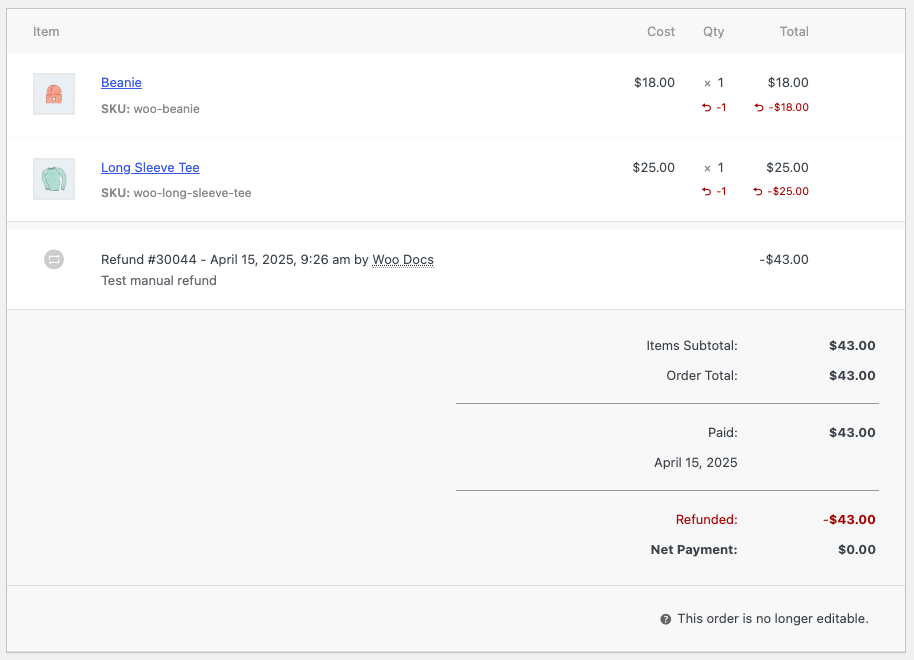
Process the approved refund Select Refund in the order’s item area. Enter the relevant quantities or line amounts and check the calculated totals, including any taxes and shipping involved. Review the final amount against what you agreed with the customer. Do not rely on the original order total when previous partial refunds exist.
If a restock option is available, use it only when the goods should become available for sale again. A refund for a damaged item should not normally add a sellable unit back into inventory. A return that has not arrived may need a different stock decision from a product already inspected and accepted.
Enter a clear reason where appropriate, remembering that some refund information can appear in customer notifications. Choose the gateway refund action when it is supported and intended, or the manual recording action when funds will be returned separately.
Verify the outcome Read the resulting order notes and inspect the payment provider when necessary. Confirm that the intended transaction was accepted and that the recorded amount is correct. If an error or timeout occurs, check whether the provider processed the request before trying again. Repeating a financial action without checking can create a duplicate refund.
For a manual refund, complete the external return of funds and record the transaction reference securely. Tell the customer what has been refunded and explain that processing time depends on the payment method and provider. Do not promise a fixed bank-arrival time unless you can support it.
Cancel without confusing the customer If an unpaid order is no longer going ahead, cancellation may be appropriate under your stock and payment workflow. For a paid order, determine whether cancellation also requires a refund. Check reserved stock, courier bookings and external systems separately. An order status cannot recall a parcel already dispatched.
Frequently asked questions Why did a partial refund not change the status to Refunded? The order may still contain value that has not been refunded.
Will the gateway return its transaction fee? That depends on the provider and agreement; verify the provider’s current terms rather than assuming it will.