The WordPress block editor lets you build a page or article from separate content pieces. A paragraph is one block; a heading, image, list or button is another. You do not need to write code to manage ordinary content. This guide explains a repeatable editing method that protects the layout while giving you control over your words and images.
Check which editor your website uses Open a draft through Posts or Pages. If you see individual blocks and an inserter marked with a plus sign, this guide is the right starting point. If you see Elementor, Divi or another builder, use the editing route documented in your handover. Do not convert a builder page into blocks just to match this tutorial. A conversion can lose styling or layout information.
Add and edit your first blocks
Create a practice draft. Enter a descriptive title, then click the main content area and type a short paragraph. Press Enter to create another paragraph. Use the plus sign to search for Heading, List, Image or Buttons, or type /heading in an empty paragraph to find a block quickly.
Write a short introduction that explains what the reader will learn. Add an H2 heading for the first main section and an H3 only for a subsection inside it. Your theme normally supplies the page title as H1; avoid adding a second H1 inside the body. Use heading levels to describe the content structure, rather than choosing a heading solely because you like its size.
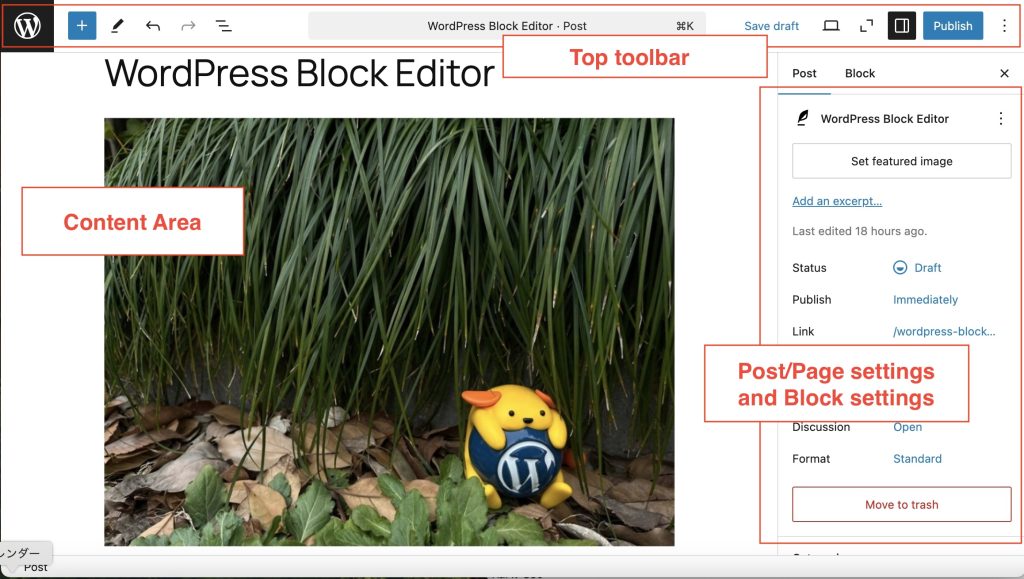
Understand the two kinds of settings Click a block to reveal its toolbar. The sidebar may contain a Block tab for the selected block and a Post or Page tab for the document itself. Image size and block spacing belong to block settings. Publishing status, featured image and other document options belong to page or post settings. Open the settings control if the sidebar is hidden.
Use List View or the document overview to understand nested layouts. A button may sit inside a Buttons block, which sits inside a Group. Select the specific item you mean to edit. Removing a parent Group can remove every block inside it, so check the selection before deleting anything.
Add useful links and buttons Highlight meaningful text, choose the link control and search for a page or paste the destination URL. Use wording such as “View our delivery options” instead of “click here”. For a button, add a Buttons block, enter a clear action and assign its destination. A button without a destination can look finished while doing nothing.
Check external links, telephone links and email links on the public page. Opening every link in a new tab is rarely necessary. If a new tab is useful, make that behaviour understandable to the reader.
Reorder, duplicate and recover Move a selected block using its movement controls or List View. Duplicate a useful layout only when you want a separate copy. Synced patterns can update multiple locations, so confirm whether a pattern is synced before changing it. Use Undo promptly after an accidental action. For previously saved content, follow the revisions article.
Preview before you save Preview the page, check the narrower device previews and inspect the real page on a phone when possible. Preview sizes help identify problems but do not reproduce every device. Test buttons and image crops, then save the draft, publish or save the update as appropriate. Wait for the saved confirmation before closing the tab.
Frequently asked questions Can I paste from Word? Yes, but check the result carefully. Paste as plain text when formatting becomes messy, then apply headings and lists inside WordPress.
Why can I not move a block? It may be locked as part of an approved design. Ask Digital Rebellion before unlocking a shared layout.