An order records what the customer requested, but its status also tells your team what should happen next. Payment, fulfilment and customer communication need to agree. This Digital Rebellion guide provides a practical daily workflow for reviewing orders and moving them through your business without treating every new order as proof of payment.
Find and identify the order Open WooCommerce → Orders. Use the available search and filters to locate the correct order by number, customer or date. Confirm the customer, items and total before making changes. Similar names or repeat purchases can make it easy to open the wrong record.
Read order notes and payment information before contacting the customer. A payment extension or fulfilment integration may already have recorded an important event. Treat customer addresses and contact details as private business information; avoid exporting or sharing them unnecessarily.
Understand the common statuses Pending payment normally indicates that payment has not been confirmed. On hold often means the order awaits payment confirmation or another check. Processing usually indicates that payment has been received and fulfilment is still needed. Completed generally means the order’s work is finished.
Failed, Cancelled and Refunded describe other outcomes, but the exact workflow depends on the gateway and store configuration. Some paid virtual and downloadable orders can complete automatically. Extensions can add or alter statuses. Read the payment record and notes rather than relying only on a colour or label.
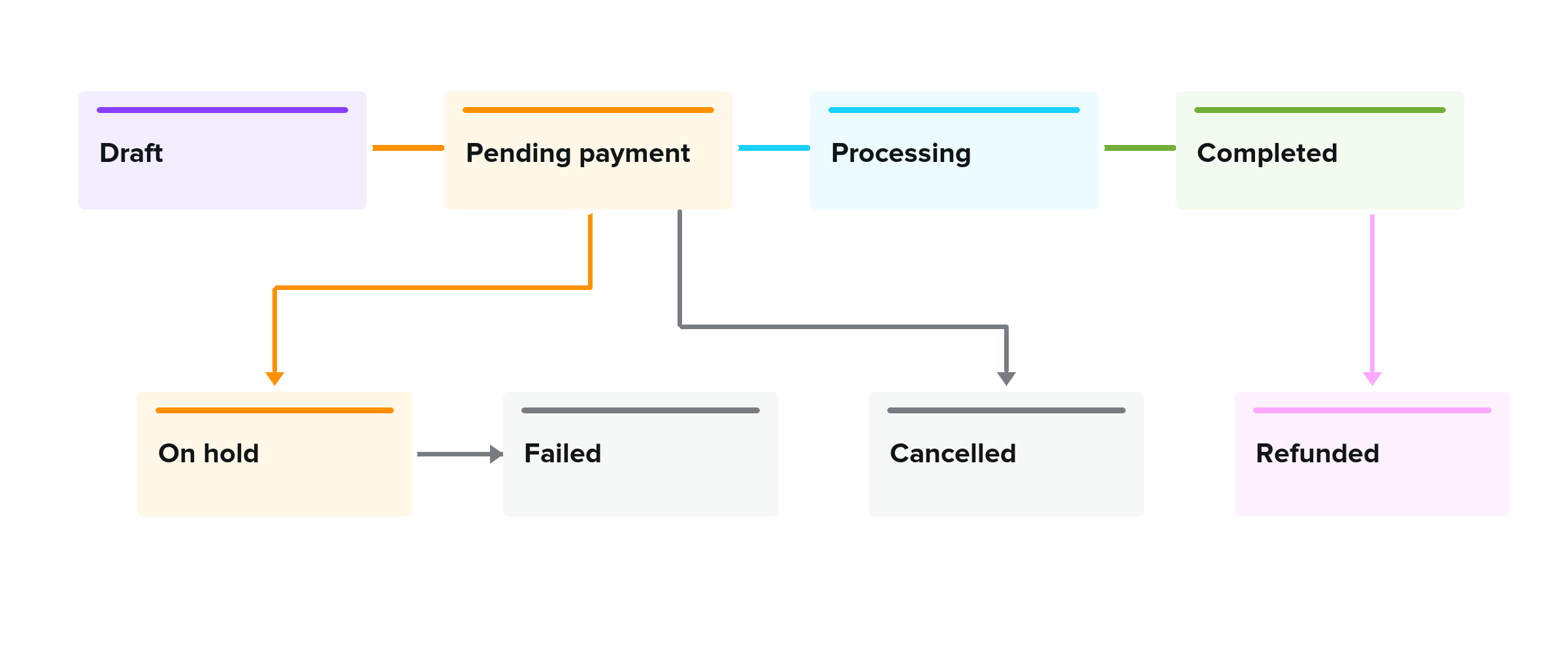
Verify payment before dispatch For an online payment, check that the gateway and order information indicate the expected successful state. If the order and payment provider disagree, stop fulfilment and investigate. For direct bank transfer, verify cleared funds through your own bank process rather than relying on a customer’s screenshot alone.
Do not manually mark a pending order as paid simply to remove it from your queue. A status edit is not a payment collection method. Record legitimate manual confirmation with a clear private note and follow the store’s approved process.
Prepare and fulfil the order Check the products, variations, quantities, delivery method and shipping address. Review any customer notes, especially those concerning delivery access or product choices. Use your packing and courier workflow, then record tracking information through the approved integration or communication method.
Update the order to Completed when the action represented by that status is finished under your process. Status changes can trigger emails and integrations, so avoid moving an order back and forth casually. For partial shipments, use the system designed for them rather than pretending that all items have shipped.
Use notes intentionally Private order notes help staff record verification, stock issues or contact history. Customer notes are intended for customer communication and may trigger an email. Check the selected note type before saving. Never put internal criticism, payment secrets or unnecessary personal information into a customer-visible note.
If a customer requests an address change, verify the request through your business process. Check whether the order has already been exported to a courier or fulfilment service; editing WordPress does not necessarily update a parcel already in transit.
Review exceptions every day Check older pending and on-hold orders, failed payments, unfulfilled paid orders and integration errors. A quiet email inbox does not prove there are no new orders: notification delivery can fail. The order system and payment reconciliation are more reliable operational checks.
Frequently asked questions Does changing an order to Completed take payment? No. Payment collection belongs to the configured payment process.
Can I edit a paid order? Some changes are possible, but can affect totals, tax, stock and customer expectations. Follow a controlled adjustment or refund process rather than silently rewriting the purchase.