Your navigation helps visitors understand your website and reach the information they need. Headers and footers often appear across many pages, so a small change can have a wide effect. This guide explains how to identify your site’s editing method, update a menu and check shared content before saving.
Identify the tools your website uses There are several valid ways to manage navigation. A classic theme may use Appearance → Menus and the Customizer. A block theme may use Appearance → Editor and a Navigation block. A page builder may manage a header through its own theme builder. Your website can also combine approaches.
Use the route recorded in your Digital Rebellion handover. Do not activate a different theme to make a missing menu appear. Changing themes can alter layouts, navigation locations and other site behaviour.
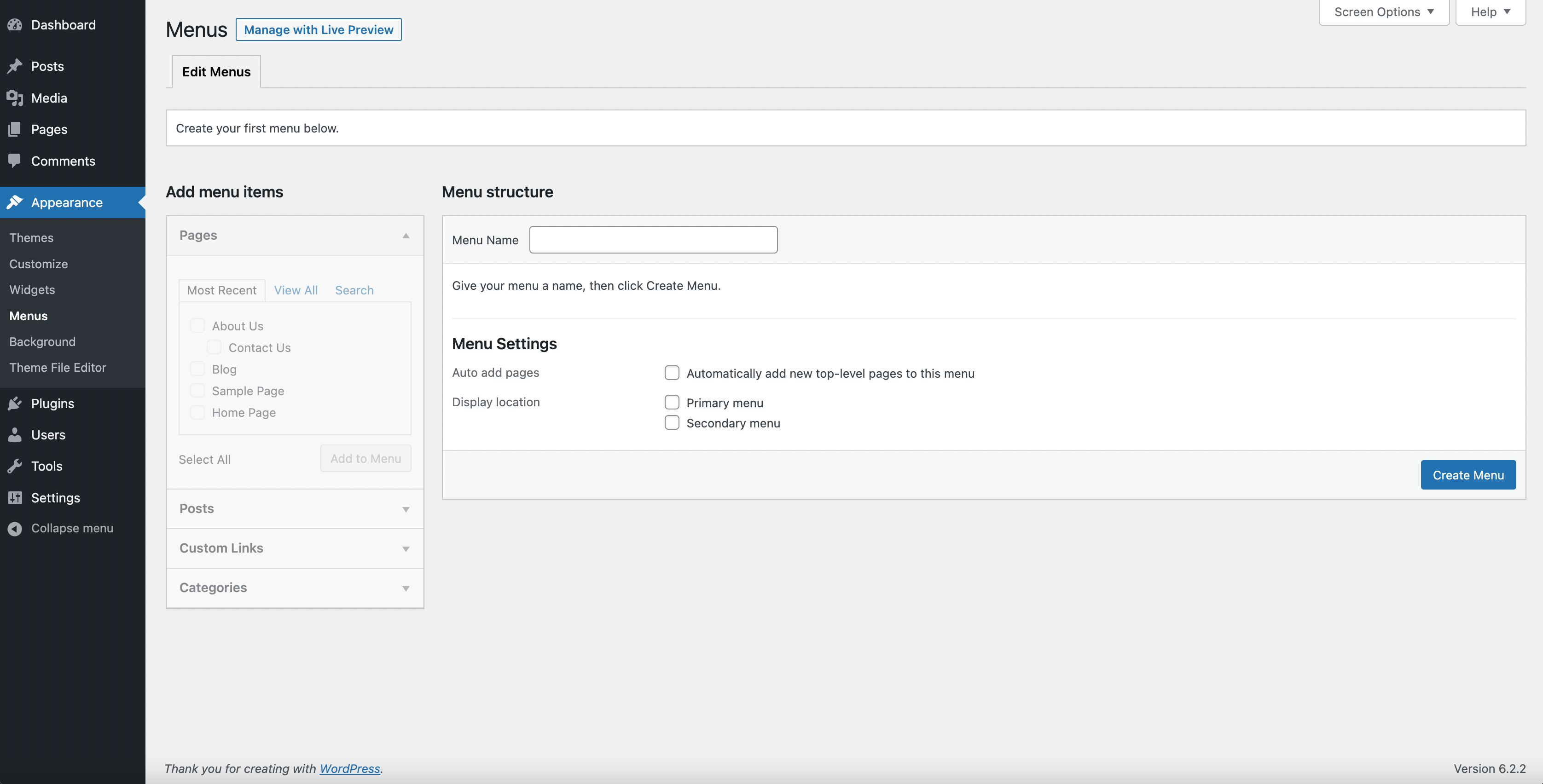
Edit a menu in a classic theme Open Appearance → Menus. If several menus exist, select the one assigned to the intended location, such as the primary header. Add the published page from the available page list. Expand the menu item if you need to shorten its navigation label; the page title can remain more descriptive.
Drag items into the order visitors should follow. Indent an item under another only when you intend it to become a submenu. Keep the structure shallow enough to use comfortably on a phone. Confirm the assigned display location and choose Save Menu.
Edit navigation in a block theme Open Appearance → Editor. Find Navigation in the available design tools, or open the appropriate header and select its Navigation block. Use List View if nested blocks make selection difficult. Edit the intended menu, add the page or link and check the hierarchy.
Review the save summary. The Site Editor can save changes to multiple resources, including a navigation menu, header and template. Confirm that each listed change was intentional. Exact labels and navigation options vary by WordPress version.
Change header and footer content Identify whether the content is a template part, widget, Customizer setting or builder template. A footer telephone number might be a text block, a link or a field used in several places. Change the underlying approved source and update its link destination as well as its visible text.
A shared header or footer can affect every page that uses it. Before saving, check that you have not accidentally removed a logo, legal link, mobile menu or enquiry button. If editing a template, confirm that you are not replacing the page-content area with fixed text.
Choose labels that help visitors Use familiar labels such as Services, About and Contact. Keep prominent navigation focused on the tasks your customers need most. A short label can still point to a longer, descriptive page title. If a page has not yet been published, do not add a public link that ordinary visitors cannot access.
For external destinations, use the full correct URL. For internal pages, choose the existing page through the editor when possible. Custom links can outlive the page they originally pointed to, so include them in your periodic link checks.
Test the saved navigation Open the website while logged out. Check the header on the homepage and an inner page, then inspect the mobile menu. Open and close submenus, follow every changed link and confirm that touch users can reach child items. Test footer links and telephone or email actions too.
If a saved menu appears unchanged, check whether you edited the correct menu and display location before clearing caches. A second header template or separate mobile menu may explain the difference.
Frequently asked questions Will publishing a page add it to the menu? Not reliably. Confirm your navigation separately; some classic menus have an automatic-add setting, but manual organisation is usually clearer.
Why did a footer change affect other pages? Shared footer content is designed to be reused across the website.