Your Media Library is a shared collection used across pages, posts and products. Treat it as part of your website’s content system, not a temporary folder. This Digital Rebellion guide explains how to prepare files, upload them once, reuse them sensibly and avoid breaking content when you tidy up.
Prepare files before uploading
Use descriptive filenames such as office-cleaning-team-cape-town.webp rather than camera-generated names. Keep names short and factual. Check that you have permission to use the photograph, illustration or document. Do not upload confidential client material, identity documents or internal records to the ordinary Media Library.
Resize photographs to suit their actual use. As a working starting point, a large content image might be around 1600 pixels wide, while a small card may need much less. These are editorial targets, not WordPress limits. Your design may need different dimensions, particularly for wide banners or sharp displays.
Use a suitable format: JPEG or WebP for many photographs and PNG where transparency or specific graphics require it. AVIF support depends on your WordPress and server image-processing capabilities. Compress images while checking that detail remains readable. A practical target is often below a few hundred kilobytes for a normal content image, but visual quality and purpose matter more than a rigid number.
Upload and locate your files Go to Media → Add New Media File, or use Upload inside an Image or File block. Select the file and wait for the upload to finish. If the screen shows a maximum upload size, that limit comes from your hosting configuration. Uploading repeatedly will not bypass it.
Open Media → Library to search existing files before uploading another copy. Use filenames, dates and available filters to find the correct item. A single image can appear on several pages, so reusing an existing attachment is often better than creating duplicates.
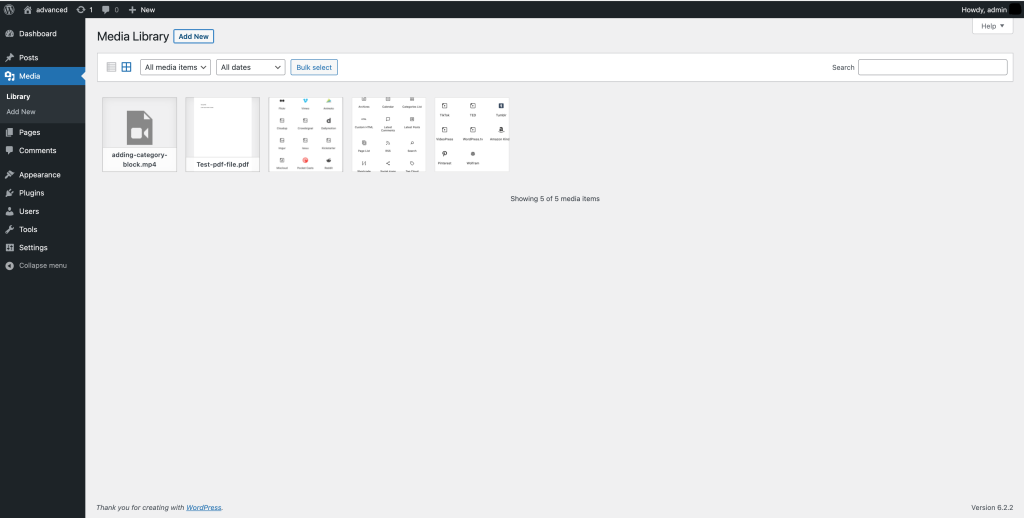
Write helpful alternative text Alt text describes the image’s meaning in its context for people who cannot see it. For an informative photograph, explain the relevant subject briefly. For example, “Cleaning team preparing floor equipment in an office reception” is more useful than “image123” or a string of keywords.
Decorative images may need empty alt text. A linked image may need text that explains the link’s purpose. Captions are visible explanations for everyone and serve a different role. Check the final Image block too: editing attachment details does not necessarily rewrite alt text already saved inside existing blocks.
Insert an image or document In your page or post, add an Image block and select the uploaded image. Check its crop, resolution choice, alignment and mobile appearance. Avoid stretching a small file into a large banner. Add a caption where attribution or explanation is useful.
For a PDF, use a File block or a clear text link. Give it a meaningful label such as “Download the service brochure PDF”. Include the file type and approximate size when helpful. Ensure the PDF itself is accessible; an accessible web page is often easier to read on a phone.
Replace and delete carefully Uploading a newer PDF creates a new file and usually a different URL. Update links that should point to the replacement. A media-replacement plugin may preserve a URL, but only use the approved workflow for your site.
“Unattached” does not prove that a file is unused: themes, builders and custom fields can reference media in other ways. Before deleting, check pages, products, headers and downloads. Deleting a library item can remove it from several places, and media deletion may be permanent.
Frequently asked questions Are uploaded PDFs private? Ordinary media URLs are generally publicly reachable. Use a protected-document solution for restricted files.
Why did my upload fail? Check file size, format and connection first. Ask Digital Rebellion to investigate server limits rather than installing an unfamiliar uploader.