A useful blog gives visitors answers and shows how your business approaches their problems. WordPress Posts provide a structured place for articles, news and updates. This guide takes you from an article idea to a published post that is readable, organised and easy to find within your website.
Plan one article around one reader question Choose a subject your customers actually ask about. “How often should a small office schedule a deep clean?” is more focused than “Everything about cleaning”. Decide what the reader should understand or do after reading. Gather accurate information, approved examples and images that you have permission to use.
Avoid writing several near-identical articles for small keyword variations. One clear, complete answer is usually more useful to readers. If you already have an article on the subject, consider improving it and recording the review date instead of publishing a duplicate.
Create the draft Go to Posts → Add New. Add a title that describes the question or benefit. In the opening paragraph, answer the main question or explain what the article will help the reader achieve. Use H2 headings for major sections, short paragraphs for explanations and numbered lists for procedures.
Explain terms on first use. Include realistic examples and the limits of any advice. Where evidence matters, link to the original source. Your own photographs, practical observations and clearly explained processes are more valuable than padding an article to hit an arbitrary length.
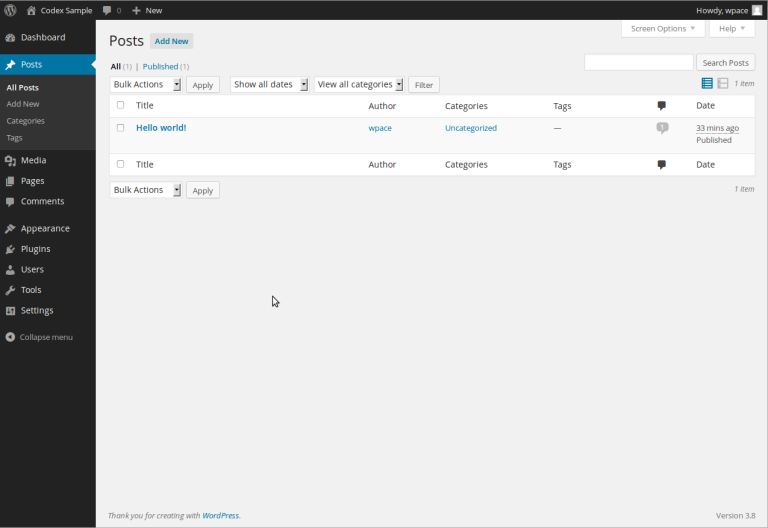
Add the publishing details Choose the most relevant category. Categories are broad editorial groupings, such as Website Advice or Company News. Tags are optional and should have a defined purpose; creating a new tag for every article rarely helps navigation.
Set a featured image if your theme uses one on article cards or post headers. A featured image is separate from an image inserted into the body, and some themes display both. Check the public preview to avoid an unwanted duplicate. Use an image crop that works in the blog listing as well as the article itself.
Write a short excerpt where the theme or listing uses it. Review the slug before publication. If an SEO plugin is installed, add a focused SEO title and meta description using its existing fields. An excerpt is not automatically the same thing as a search meta description; the output depends on your configuration.
Link the article into your website Add links to relevant service pages and related articles where they help the reader. Use descriptive anchor text and confirm each destination. Include one useful next step, such as requesting a quote or reading a practical follow-up. Avoid turning every paragraph into a sales pitch.
When the new article is published, update an older related article to link to it where appropriate. This helps visitors discover the material through an existing path rather than relying only on the latest-posts feed.
Publish now or schedule for later For immediate publication, complete your checks and choose Publish. For scheduling, open the publish date controls, select a future date and time, then confirm the scheduled status. Check the website timezone first; the editor uses the site’s configured time context.
Visit the public URL after publication. Scheduled posts rely on WordPress scheduling; sites with little traffic or a scheduling problem can publish late. If timing is important, ask Digital Rebellion to confirm a reliable scheduled-task setup and verify the post at the intended time.
Keep the article accurate after publication Review contact details, prices, screenshots and product references periodically. Make substantive updates when the information changes. Changing the displayed date without improving the content can mislead readers.
Frequently asked questions Can I keep writing without publishing? Yes. Save the draft and return through the Posts list.
Why is my image missing from the blog listing? Check the featured image, theme layout and any listing-specific settings rather than inserting another body image at random.