Pages hold the information visitors expect to find over time: your services, business story, contact details and policies. A well-maintained page answers a specific question and gives the visitor a clear next step. This Digital Rebellion article explains how to improve an existing page or add a new one while keeping your website organised.
Decide whether you need a new page Start with the purpose. If you are changing opening hours, update the existing information. If you are introducing a distinct service that needs its own explanation, a new page may be appropriate. Creating multiple pages that answer the same question can confuse visitors and make future updates harder.
Collect your approved text, images and destination links before opening the editor. For an important live page, keep a copy of the current wording or confirm revisions are available. Establish whether the page uses standard blocks or a page builder. Follow the builder-specific handover for builder pages rather than switching editors.
Find and edit an existing page Go to Pages → All Pages, search for the title and choose Edit. Confirm the public URL and content match the page you intend to change. Similar titles such as “Home”, “Homepage” and “Home draft” can refer to very different items.
Make a focused change first: replace a paragraph, update a link or adjust a heading. Preserve established groups, columns and reusable sections unless the layout itself needs changing. When the same information appears in a footer or header, identify the shared source rather than editing only one occurrence.
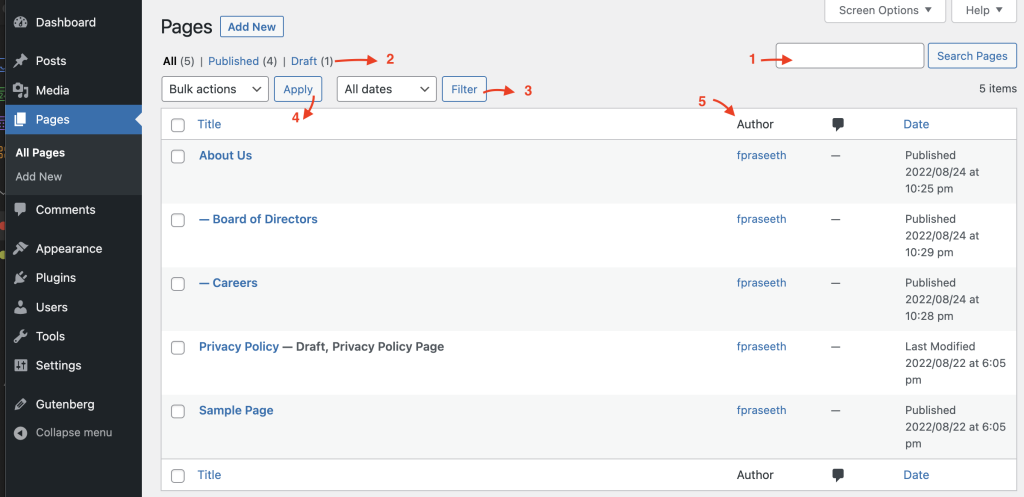
Create a useful new page Choose Add New Page or the equivalent add button. Enter a specific title such as “Commercial Cleaning Services” rather than “New Page”. Write a short introduction, explain who the service is for, describe what is included and add a clear enquiry or purchase action.
Use the approved template if your website has several layouts. Avoid choosing a blank canvas or full-width template unless that choice matches the design. A parent page can organise related pages into a hierarchy, but setting a parent is not the same as adding the page to your navigation.
Review the slug before first publication. A readable slug such as commercial-cleaning is usually easier to maintain than a date or a long sentence. Once a page is live and shared, changing its URL requires a redirect plan and updated internal links. Do not change established URLs for cosmetic reasons alone.
Preview and publish Check spelling, factual claims, business details, image crops and headings. Open every call-to-action destination. Confirm that a contact action reaches the correct form, telephone number or email address. Review the page on a phone, including long headings and stacked columns.
Save the draft if approval is still needed. When ready, choose Publish for a new page or Update/Save for a published one. Button wording varies by version. Open the public URL in a logged-out window and confirm the result. If old content remains, follow the cache checks in the troubleshooting article.
Add the page to the right places Publication alone does not guarantee that the page appears in the main menu. Update the appropriate navigation separately, then add useful links from related pages. If the page is intended as the homepage, use the agreed homepage setting rather than deleting the current front page.
When retiring a page, identify links, adverts and bookmarks that rely on it. Digital Rebellion can help decide whether to replace its content, redirect it or remove it. Sending every retired page to the homepage can leave visitors confused.
Frequently asked questions Does Preview make my page public? A normal preview does not publish a draft, but shared preview links and plugins can change access.
Can I delete a page and recreate it? Update the existing page when possible so its URL and incoming links continue to work.