A simple product is a good fit when the customer buys one defined item without choosing variations such as size or colour. A clear product page helps shoppers understand what they are buying and reduces avoidable questions. This guide takes you through the main product fields and the checks to complete before making the item public.
Gather the information first Prepare the approved name, selling price, description, SKU if used, stock policy, product photographs and delivery information. Confirm whether the item is physical, virtual, downloadable or a combination. For tax and shipping treatment, use your store’s approved configuration rather than guessing from another product.
If the customer must choose a size with its own price or stock, use a variable product instead. If a paid extension supplies a specialised product type, such as a subscription or booking, follow that extension’s instructions. A normal simple product does not automatically create recurring billing or appointment availability.
Create the product draft Open Products → Add New Product. Enter a specific product name and a full description. Explain the item, its intended use, what is included, relevant dimensions or specifications and any important limitations. Write for a buyer who has not seen the item in person.
Add a short description where your theme uses it near the purchase area. Use this space for the key decision-making details rather than duplicating the entire long description. Avoid claims that you cannot substantiate.
Set the product type and price In Product data, choose Simple product. Add the regular price using the store’s established currency and tax-entry convention. For a genuine promotion, add a sale price and any intended schedule. Check the public display, because tax configuration and pricing extensions can affect what customers see.
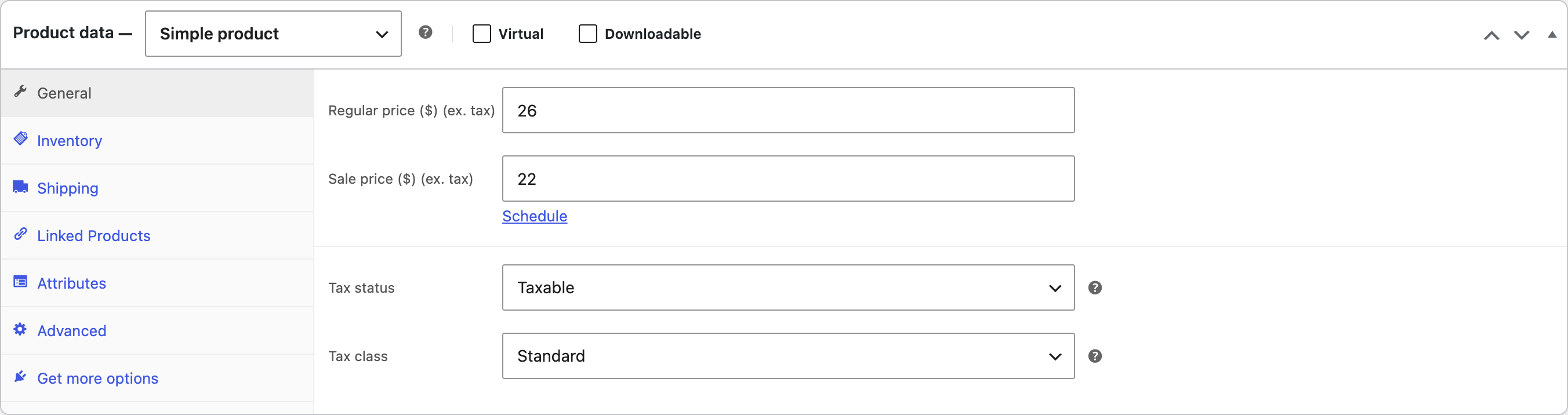
Mark Virtual only when the item does not require shipping. Mark Downloadable when the sale includes files delivered through WooCommerce’s download system. A physical item that also includes a download can be downloadable without being virtual.
Add stock shipping and organisation Use a unique SKU if your business tracks items by code. Choose whether WooCommerce should track a quantity or whether staff will maintain the stock status manually. Do not select In stock for an unavailable item merely to make the purchase button appear.
For physical goods, add accurate weight and dimensions using the units configured in your store. Assign an existing shipping class only when it matches the approved shipping rules. A shipping class does not create a delivery service by itself.
Choose a useful product category and add attributes that help shoppers understand the item. Tags are optional. Keep the structure consistent with existing products so the catalogue remains easy to browse.
Add the main image and gallery Set a clear product image and use the gallery for additional angles, details or scale. Keep the product identifiable in listing thumbnails. Check image rights and add meaningful alternative text. A lifestyle photograph can be helpful, but should not make included accessories ambiguous.
Preview the item and inspect the purchase area, description, image crop and category placement. Confirm that any existing product template renders the information correctly. Test on a phone, where long titles and dense specification lists can become difficult to read.
Publish and verify the purchase path Publish when the content and operational details are approved. Visit the product while logged out, add it to the cart and check the expected shipping and price display. Use the agreed test-order process if payment verification is needed; do not place an uncontrolled real charge as a casual test.
Frequently asked questions Why is there no Add to cart button? Check the price, stock status, catalogue visibility and any store-mode or extension restrictions.
Can I duplicate a similar product? If the feature is available, use it as a starting point, then review every copied price, SKU, image, description and stock setting before publishing.