Mistakes happen during editing. A paragraph disappears, an older description turns out to be better, or a page is moved to Trash accidentally. WordPress includes several recovery tools, but each solves a different problem. This guide helps you choose the right one and check the result before you continue.
Know what each recovery tool does A draft is unpublished content you can return to later. An autosave is a recovery copy created while you work. A revision is a saved content version available for comparison when revisions are enabled and retained. Trash holds deleted posts or pages temporarily under the site’s retention rules.
A complete website backup covers a much wider set of information, including database content and files. Revisions do not replace that backup. They will not reliably reverse plugin configuration, recover a deleted upload or restore an entire store.
Save and name drafts clearly Use a descriptive working title so colleagues can identify the draft. Save deliberately after important changes and wait for the saved confirmation. If you are preparing a replacement for a live page, agree how the replacement will be reviewed and published. A separate draft is not automatically connected to the published version.
Preview the draft to check appearance. Ordinary visitors should not be able to view an unpublished item, but public-preview plugins or shared links can change access. Do not put confidential material in a draft on the assumption that every preview system is private.
Recover an immediate editing mistake If you have just deleted or moved something unintentionally, use Undo in the editor before closing the tab. Check the result carefully because the last action may have affected a group of blocks. If the editor offers to restore an autosave after a crash or lost connection, compare it with the saved content before accepting it.
Keep a copy of valuable unsaved text if the editor appears unstable. Do not refresh repeatedly while hoping that an unsaved change has reached the server.
Compare and restore a revision Open the relevant page or post. In its document settings, find Revisions where available. Choose the saved versions you want to compare. WordPress versions may show a revision list and slider, or a classic comparison screen.
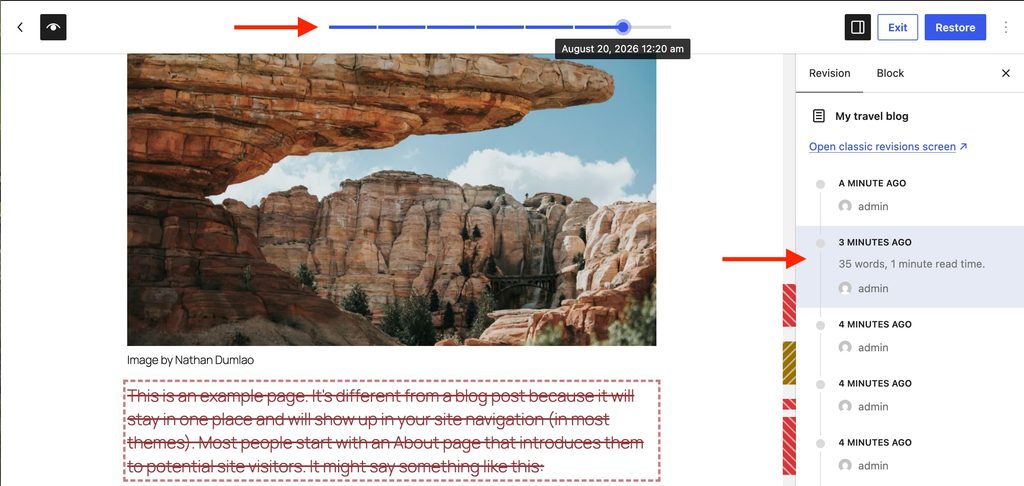
Read the changes before restoring. Confirm that you are recovering the correct wording rather than also removing newer information that should stay. Restore the chosen version, then reopen the editor and check publication status and the public page. A restoration can affect the live item, so treat it as an intentional content change.
If only one paragraph needs recovery, you may prefer to copy that wording and edit the current page. This avoids discarding other useful updates made after the older version.
Restore an item from Trash Open the relevant Pages or Posts list, choose Trash and locate the item. Select Restore, then check its status and URL. Confirm whether navigation links and related content still work. Trash is not indefinite storage: items can be deleted automatically or removed permanently.
Media deletion follows a different workflow and may be permanent. Do not assume a deleted image can be recovered through the Pages Trash. Ask Digital Rebellion about backups promptly when files or broader settings are involved.
Prevent repeat mistakes Assign one person to edit a particular live page at a time. Respect editing-lock warnings. Use staging or an approval workflow for larger changes, and record the date and purpose of important updates. A short change log can make it much easier to identify the version you need later.
Frequently asked questions Why are there no revisions? The site may limit or disable them, or there may not yet be another retained version.
Will restoring a page restore its deleted photographs? No. Content revisions and uploaded files are separate; missing media may require a file backup.